Back to Portfolio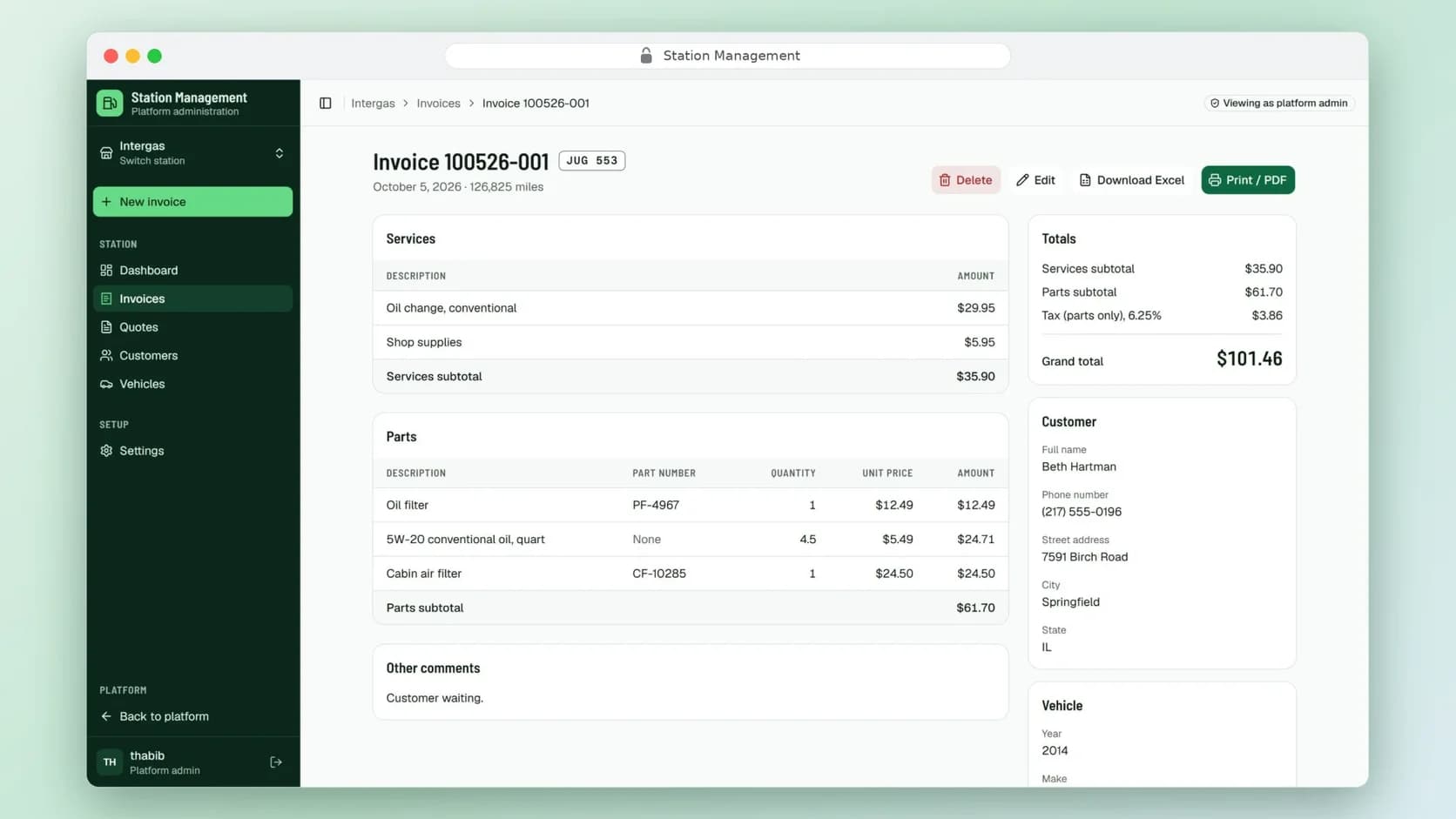
Case Study
Station Management
Next.jsTypeScriptTailwind CSSshadcn/uiPrismaPostgreSQLDockerMulti-Tenant
Station Management is a multi-tenant invoicing application built for gas stations and auto-service shops. It is built around the way a counter employee actually works: type a plate, see who owns the vehicle, enter the work, hand over a printed invoice. Each station is isolated, with its own users, customers, vehicles, tax rate, logo and numbering. A platform administrator provisions stations and their users. The app is built with Next.js App Router, Prisma and PostgreSQL, and ships as a Docker Compose stack.
Version 1.0 · Last updated November 20, 2026
💼 Welcome to Station Management
Station Management keeps a station’s customers, vehicles, invoices and quotations in one place. Whether you’re a platform administrator setting up a new station, an employee at the counter, or the person who maintains the station’s settings, everything runs on one workflow: start with the plate.What You Can Do
- Run many stations on one platform: Each station has its own users, data, settings and invoice numbers.
- Start from the plate: Type a plate and see its current vehicle, its customers and the last recorded mileage.
- Create invoices fast: Unlimited service rows and part rows, with the total and tax updating as you type.
- Get readable daily invoice numbers: Numbers look like
100126-001, the date plus that day’s count, and restart each day. - Quote before you work: Save a price offer as a quote, then convert it to an invoice with one button.
- Print, PDF or Excel: Every invoice shows the station’s logo and a feedback QR code.
- Find anything: Search invoices by number, plate, customer name, phone or date.
- Keep vehicle history: When a plate moves to a different vehicle, the earlier vehicle stays on record.
- See the day at a glance: A dashboard with a plate shortcut and recent invoices.
🚪 Getting Started
Create the first administrator
- Run the bootstrap command in the terminal and choose a username.
- Enter a password when prompted. The command refuses to run if an administrator already exists.
- Open the app and sign in.
Create a station and its users (platform administrator)
- Create a station, then create users for it.
- Each user belongs to exactly one station, and employees sign in with a username and password.
- Administrators can set a user’s password or remove a user.
Tip
The platform administrator can open any station’s workspace to help with setup.⚙️ Station Settings
Before the first invoice, fill in the station’s details:- Station details and logo: These appear at the top of every invoice and quote.
- Parts tax rate: A number-only field. Tax applies to parts only, and fractions of a cent round to two decimals.
- QR code link: The feedback page your customers should reach. The picture and QR code appear on the printed invoice and the Excel file.
- Quote validity: How many days a quote stays valid.
Tip
If the QR link is empty, the QR section is simply left off.🚗 Plates, Vehicles and Customers
Look up a plate. Spaces are ignored. Open Plate details to see the current vehicle (year, make, model, colour), its customers and its Last mileage, taken from the vehicle’s latest invoice.Register a new plate. Add the vehicle and link an existing or new customer before invoicing.Customers. A customer record keeps name, phone and address. The Customer details page lists every vehicle linked to them, and vehicles they no longer use are marked Former.Remove a customer from a vehicle. On the plate page, Remove unlinks a customer. They stop appearing when you pick that plate on a new invoice. Saved invoices don’t change, and the customer can be linked again later.Plate moved to a different vehicle. Make a transfer. The new vehicle becomes current and the earlier one stays in history. You review the customer links at that moment.Delete a mistaken vehicle. A vehicle registered by mistake can be deleted, and a mistaken transfer can be undone.Important
A vehicle that has quotes can’t be deleted.🧾 Creating an Invoice
- Choose Create invoice from the dashboard or a plate page.
- The header fills in from the station’s settings. The date defaults to today and can be changed.
- Pick the customer linked to the plate, or add a new one.
- Enter the mileage. The previous mileage is shown as a hint, but the field always starts empty.
- Add service rows, and part rows with quantity × unit price. Subtotals, tax and the grand total update live.
- Add free-text comments and save.
MMDDYY-NNN, for example 100126-001. The count restarts at -001 every day and is separate for each station. Editing an invoice never changes its number.Important
A saved invoice is a snapshot of the customer, vehicle, tax rate and totals at that moment. Changing a customer or vehicle later doesn’t rewrite old invoices.📝 Quotations
Give the client a price before the work starts.- Numbers look like
Q-101626-001and restart daily per station. - Statuses: Open (can be edited, printed, declined or converted), Declined and Converted. Declined and converted quotes stay on record, can still be printed and can’t be changed.
- Convert to invoice carries everything over with no retyping.
- Quotes never appear in invoice history, the dashboard or any invoice total.
- Printouts are titled “QUOTATION”.
🖨️ Print, PDF and Excel
- Print / PDF: Open a saved invoice and print it, or save it as PDF from the print dialog. It shows the station logo and the feedback QR code.
- Excel: Download from the invoice page or from the Invoices list, with the same picture and QR code.
🔍 Finding Invoices
Search by invoice number (100126-001 or 100126-1), plate, customer name or phone, and date. You can also search by vehicle details.📊 The Dashboard
Employees land here after signing in. It has a plate field to start an invoice, a Recent invoices list, and a setup notice if the station’s settings are incomplete.🛡️ Platform Administration
- Create and find stations and station users.
- Open any station’s workspace.
- Change your own password.
Important
Station users see only their own station. Another station’s record shows “not found”.🧱 Under the Hood
- Frontend and API: Next.js App Router with TypeScript, Tailwind CSS and shadcn/ui.
- Data: PostgreSQL through Prisma, with migrations. Invoice numbers are assigned under a per-station lock, with a unique index as a backstop against duplicates.
- Deployment: Docker Compose with a database service, a migration job that runs before the app starts, and the app container. Station logos are stored in the database, so nothing needs to be mounted.
- Delivery process: Built story by story from Gherkin scenarios, each passing independent code reviews, an OWASP security audit and testing before it was committed.
📋 Quick Reference
- Invoice number:
MMDDYY-NNN, resets daily per station - Quote number:
Q-MMDDYY-NNN - Quote statuses: Open → Declined or Converted
- Roles: Platform administrator (all stations) and station user (one station)
Thank you for using Station Management
Plate-first invoicing, built for the counter.
Version 1.0 · Last updated November 20, 2026