Back to Portfolio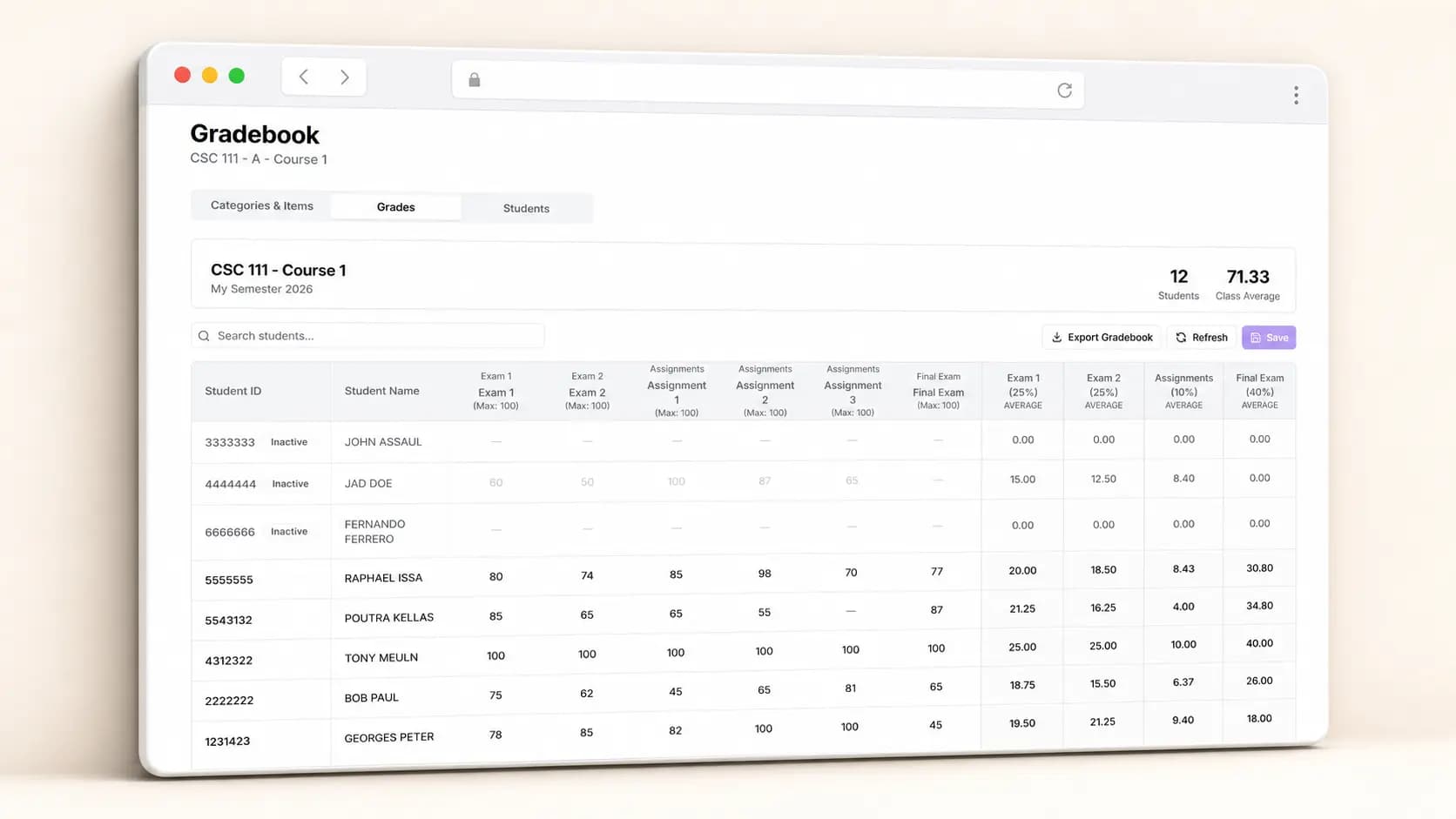
Case Study
SMS — Student Management System
LaravelNext.jsDockerPostgreSQL
SMS is a full-featured academic management platform built for universities and training institutes. Administrators handle enrollments, course catalogs, and grade entry; instructors track attendance and assignments; students access transcripts, schedules, and announcements — all from a single responsive dashboard. The system handles thousands of concurrent users with role-based access control and integrates with email and SMS providers for institutional communications.
Version 1.0 · Last updated January 27, 2026
🚀 Demo Available
Try SMS yourself with our live demo.
Open Live Demo- Username
- admin
- Password
- Th1s1s@wes0me
Demo URL: https://demo-sms.codewitht.com/
📚 Welcome to SMS
The Student Management System is your one-stop platform for managing academic activities. Whether you're an instructor entering grades or an administrator organizing courses, SMS makes it simple.What You Can Do
- Organize Semesters — Set up Fall, Spring, and Summer terms
- Manage Courses — Create and edit your course catalog
- Track Majors — Organize academic programs
- Enter Grades — Use the intuitive gradebook
- Monitor Attendance — Track student participation
- Access Anywhere — Works on desktop, tablet, and phone
🚪 Getting Started
Login to SMS
- Open your browser and go to your institution's SMS website
- Enter your username and password
- Click Login
Your Dashboard
When you log in, you'll see:- Side menu on the left with Semesters, Courses, and Majors
- Main area where you'll work
- User profile in the top corner
- Theme toggle to switch between light and dark mode
Tip
Click the ☰ menu icon on mobile to open or close the sidebar.📅 Managing Semesters
Semesters help you organize your academic calendar — Fall, Spring, Summer, etc.Add a New Semester
- Click Semesters in the sidebar
- Click Add Semester
- Fill in the semester name, start date, and end date
- Click Save
📖 Managing Courses
Your course catalog lives here. Browse, add, and edit all your courses.Add a New Course
- Click Courses in the sidebar
- Click Add Course
- Enter course code, name, credits, and description
- Click Save
Create Course Sections
Sections are specific instances of a course (like CS101 Section 01 for Fall 2026).- Click ⋯ on a course → View Sections
- Click Add Section
- Assign the semester, instructor, and schedule
- Save
🎓 Managing Majors
Organize all your academic programs in one place.Add a Major
- Click Majors in the sidebar
- Click Add Major
- Enter major name and details
- Save
Tip
Quick edit: double-click any major name to rename it inline. Press Enter to save.📊 Working with the Gradebook
The Gradebook is where you manage grades, grading structures, and student attendance.Opening the Gradebook
- Go to a course section
- Click ⋯ → Gradebook
Tab 1 — Categories & Items
Set up your grading structure here.Left side — Categories:- Create categories like "Assignments", "Exams", "Projects"
- Assign a weight to each (totals must equal 100%)
- Choose how to calculate (Equal Weight, Points Based, etc.)
- Add specific items like "Midterm Exam" or "Homework 1"
- Set maximum points for each
Example workflow
- Click Add Category → Name: "Assignments", Weight: 40%
- Select the category → Click Add Item → Name: "Assignment 1", Max: 100 pts
- Save
Important
Category weights must total 100%.Tab 2 — Grades
Enter student grades here — it works like a spreadsheet.- Each row = one student
- Each column = one grade item
- Click a cell, type the grade, press Enter
- Category grades
- Final percentage
- Letter grade
Important
Don't forget to click Save.Tab 3 — Attendance
See all your students and track their enrollment status — names, IDs, emails, majors, and attendance metrics.Update student status: click the status dropdown to change between Enrolled, Withdrawn, Dropped, or Completed.Complete Workflow
- Categories & Items → create categories (weights must equal 100%) and add grade items
- Grades → enter scores; the system calculates final grades; click Save
- Attendance → monitor enrollment and update statuses
📱 Using SMS on Mobile
SMS works great on your phone or tablet.Quick Tips
- Menu: tap the ☰ icon to open or close the sidebar
- Tables: swipe left and right to scroll (the first column stays visible)
- Editing: tap and hold cells to edit
- Gradebook: all three tabs work on mobile
Tip
Pro tip: use landscape mode for more space when viewing tables.📋 Quick Reference
Navigation
- Semesters → manage academic terms
- Courses → course catalog and sections
- Majors → academic programs
Gradebook
- Categories & Items → set up grading structure
- Grades → enter student scores
- Attendance → track student enrollment
Tips
- Use search bars to find things quickly
- Click ⋯ for more options
- Double-click to quick-edit
- Always save your work
Thank you for using SMS
Version 1.0 · Last updated January 27, 2026