Back to Portfolio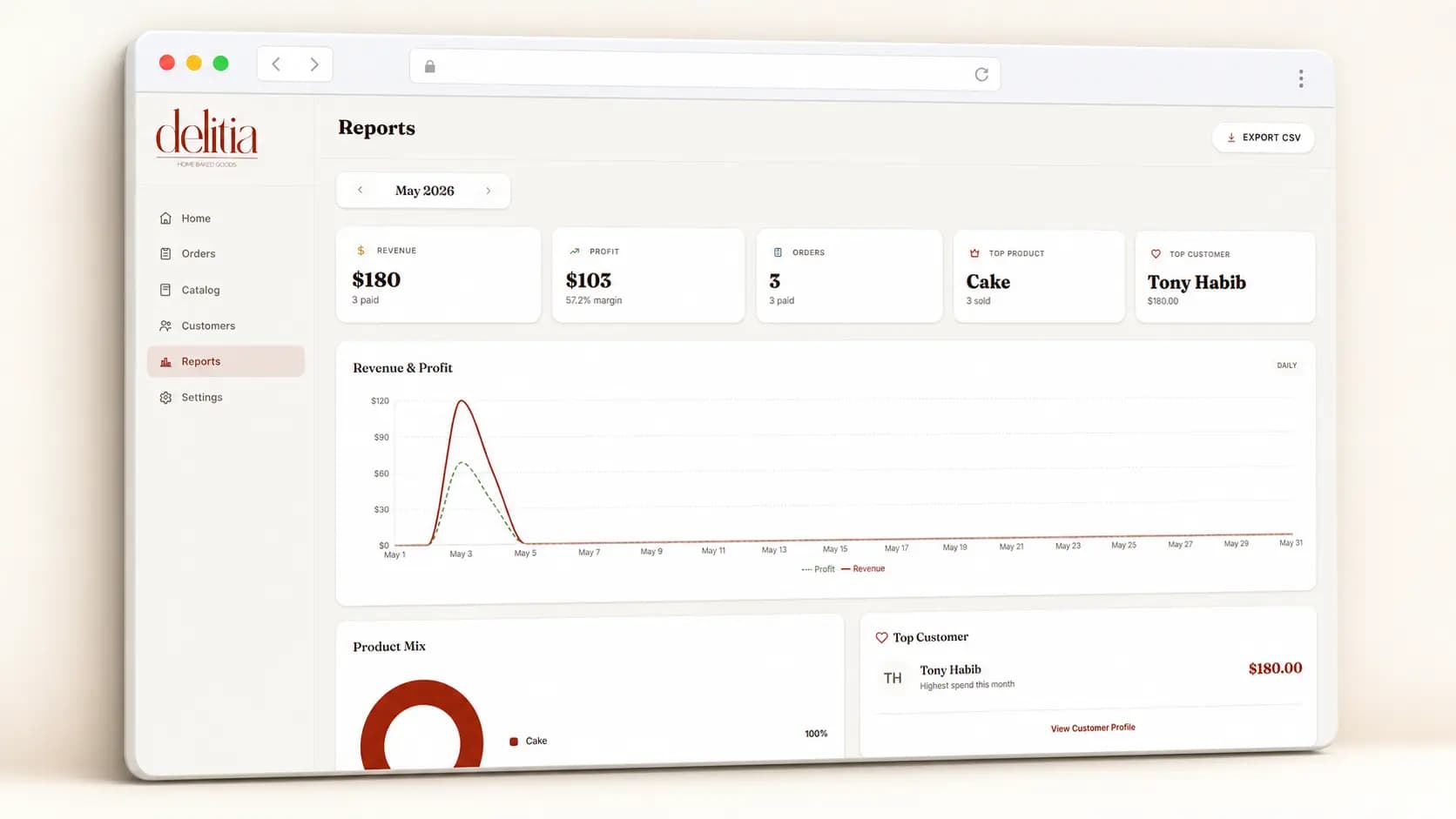
Case Study
Delitia Studio
LaravelNext.jsDockerPostgreSQL
Delitia Studio is a specialized order and pricing assistant built for home cake businesses. Bakers configure their ingredient costs, recipes, and pricing rules once; the app then generates accurate quotes, manages a calendar of orders, and produces shopping lists for upcoming bakes. The interface emphasizes warmth and craft — immersive case-study layouts, smooth motion, and a CMS-driven content layer so the studio can keep things fresh without a developer.
Version 1.0 · Last updated May 4, 2026
🧁 Welcome to Delitia Studio
Delitia Studio is a one-stop pricing and order assistant for home cake businesses. Whether you're costing out a new flavor or tracking tomorrow's deliveries, the app replaces mental math and scattered notes with a photo-driven, tap-to-pick interface — built for solo bakers working with flour-covered hands.What You Can Do
- Track Ingredients — Log purchase costs and let the app calculate cost-per-use-unit automatically
- Build Components — Save reusable bases, fillings, and frostings with full recipe costing
- Configure Products — Combine components into cakes, cupcakes, and cookies with per-size pricing
- Manage Customers — Keep contact info, addresses, and full order history per client
- Run Orders End-to-End — From customer pick to delivery, with live cost and profit on every screen
- See Profit in Real Time — Every product card shows cost, price, and margin as you build
- Review Reports — Monthly revenue, profit, top products, and top customers at a glance
- Use It Anywhere — Mobile-first PWA that also works on tablet and desktop
🚪 Getting Started
First Launch
- Open Delitia Studio in your browser
- Tap the install prompt to add it to your home screen (optional but recommended)
- The app launches with an empty dashboard — your data lives on a cloud database
- Tap Catalog to add your first ingredient
Your Home Dashboard
When you open Delitia Studio, you'll see:- Greeting & stats row at the top with today's revenue, profit, and order count
- Today's bakes — orders due today
- Upcoming — the next few days of orders
- + New Order floating button (bottom right)
- Bottom navigation with Home, Catalog, Customers, and More
Tip
Tap the stats row to toggle between Today and This Week views.🥚 Managing Ingredients
Ingredients are the foundation — every recipe and price ultimately rolls up from here.Add a New Ingredient
- Tap Catalog → Ingredients tab
- Tap + Add ingredient
- Fill in name, photo, purchase unit, purchase cost, use unit, and the conversion factor (how many use-units fit in one purchase unit)
- The app auto-calculates cost-per-use-unit
- Tap Save
Update Prices
- Open the Ingredients tab
- Tap any ingredient's price field to edit inline
- Enter the new purchase cost and save
- Delitia Studio automatically recalculates every component and product that uses it
Important
A banner appears at the top of the list when ingredients haven't been updated in 30+ days — keeping prices fresh keeps your profit numbers honest.🎂 Building Components
Components are reusable recipes — bases, fillings, and frostings — that you'll mix and match across products.Create a Component
- Tap Catalog → Components
- Pick a sub-tab: Bases, Fillings, or Frostings
- Tap + Add
- Enter name, photo, and which product types it works with (Cake / Cupcake / Cookie)
- Add ingredients with quantities — the app sums the total cost as you go
- Set the base yield (e.g. "makes 1 cake" or "makes 12 cupcakes")
- Tap Save
🛍️ Configuring Products
Products are saved combos you'll reach for again and again — like "Classic Vanilla Birthday Cake."Create a Product
- Tap Catalog → Products tab
- Tap the + new product button
- Upload a photo and enter a name
- Pick a type: Cake, Cupcake, or Cookie
- Pick a base, filling (optional), and frosting
- Choose available sizes (10 / 15 / 20 / 25 / 30 cm for cakes)
- Optionally enter a suggested price
- Watch the live cost preview at the bottom update as you build
- Tap Save
Tip
While building an order, you can tap Save as combo to turn any one-off configuration into a reusable Product.📋 Creating an Order
This is the core flow — from customer to confirmation in three steps.Step 1 — Choose a Customer
- Tap the + New Order floating button on the home screen
- Search for an existing customer, or tap a recent photo-chip
- Tap + New customer if it's their first order — enter name, phone, and address
- Tap Continue
Step 2 — Build the Items
- Tap + Add item
- Pick the product type (Cake / Cupcake / Cookie)
- Either swipe through saved Products or tap Build new from scratch
- Tap each card — Base, Filling, Frosting — and swipe to pick options in the bottom sheet
- Set the size (cakes) or quantity (cupcakes / cookies)
- Tap any extras chips that apply (custom message, etc.)
- Enter your price and watch the profit update live (green = profit, red = loss)
- Tap Add to order
- Repeat for additional items, then tap Continue
Tip
Swipe left on an item card to delete it, or tap to edit.Step 3 — Confirm Details
- Pick the due date and time
- Choose Pickup or Delivery (delivery pre-fills the customer's address)
- Add a delivery fee, overhead items, notes, or a reference photo
- Review the final summary: total cost, total price, and total profit
- Tap Confirm Order — done
🔄 Tracking Order Lifecycle
Every order moves through a clear timeline: Ordered → Baking → Ready → Delivered → Paid.Advance an Order
- Tap an order card from the dashboard or the orders list
- Tap the next stage in the timeline (e.g. Ordered → Baking)
- A toast confirms the update
Mark as Paid
- Open the order
- Toggle the Paid / Unpaid pill
- Delitia Studio freezes the cost snapshot — the figures stay locked for accurate historical reporting even if ingredient prices change later
Important
Editing a paid order shows a warning that changes won't affect historical reports. Your monthly profit numbers stay trustworthy.Quick Actions
- Long-press an order card for Mark Paid, Message Customer, Edit
- Swipe right on an order card to quick-advance the status
👥 Managing Customers
Add a Customer
- Tap Customers in the bottom nav
- Tap + New
- Enter name, phone, address, and an optional photo
- Save
View Customer History
- Tap any customer in the list
- See their avatar, contact info (tap phone to call, address to map), notes, and full order timeline
- Tap any past order to jump to its detail screen
Tip
Use the alphabetical index on the right edge of the Customers list for fast navigation.📊 Reports & Insights
View Monthly Reports
- Tap More → Reports
- The current month is shown by default — use the month picker to scroll back
- Review total revenue & profit, orders count, top product, top customer, revenue & profit by day, and product mix
Export to CSV
- Open Reports
- Tap Export CSV at the bottom
- Save the file to your device or share it via the OS share sheet
⚙️ Settings & Backup
Backup Your Data
Delitia Studio stores everything in the cloud — backups give you peace of mind.- Tap More → Settings
- Tap Backup / Export data
- Save the backup file to your device or cloud storage via the share sheet
Configure Defaults
In Settings you can set:- Default overhead bundle (boxes, ribbon, etc.)
- Default delivery fee
- Default cake sizes shown when building products
- Your profile name and photo
📱 Using Delitia Studio on Mobile
Delitia Studio is mobile-first — every screen is built for thumbs and one-handed use.Quick Tips
- Photo-driven: tap product, component, and ingredient photos instead of typing names
- Bottom sheets: swipe horizontally inside pickers to flip through options
- Steppers: use − and + for cupcake and cookie quantities
- Floating action button: + New Order is always one tap away from the home screen
- Install as PWA: add to home screen for a full-screen, offline-capable experience
Tip
Pro tip: add Delitia Studio to your home screen so it opens like a native app — perfect when your hands are floury.📋 Quick Reference
Bottom Navigation
- Home → dashboard, today's bakes, stats
- Catalog → Ingredients, Components, Products, Overhead
- Customers → contact list with full order history
- More → Reports, Settings, Backup
Order Flow
- Customer → search or create
- Items → build products with live cost & profit
- Details → date, delivery, overhead, confirm
Tips
- Keep ingredient prices fresh — the 30-day banner is your friend
- Save frequently used configurations as Products via Save as combo
- Mark orders Paid to lock historical cost data
- Back up regularly — your data is yours to keep
Thank you for using Delitia Studio
Smart pricing for your sweet business.
Version 1.0 · Last updated May 4, 2026