Back to Portfolio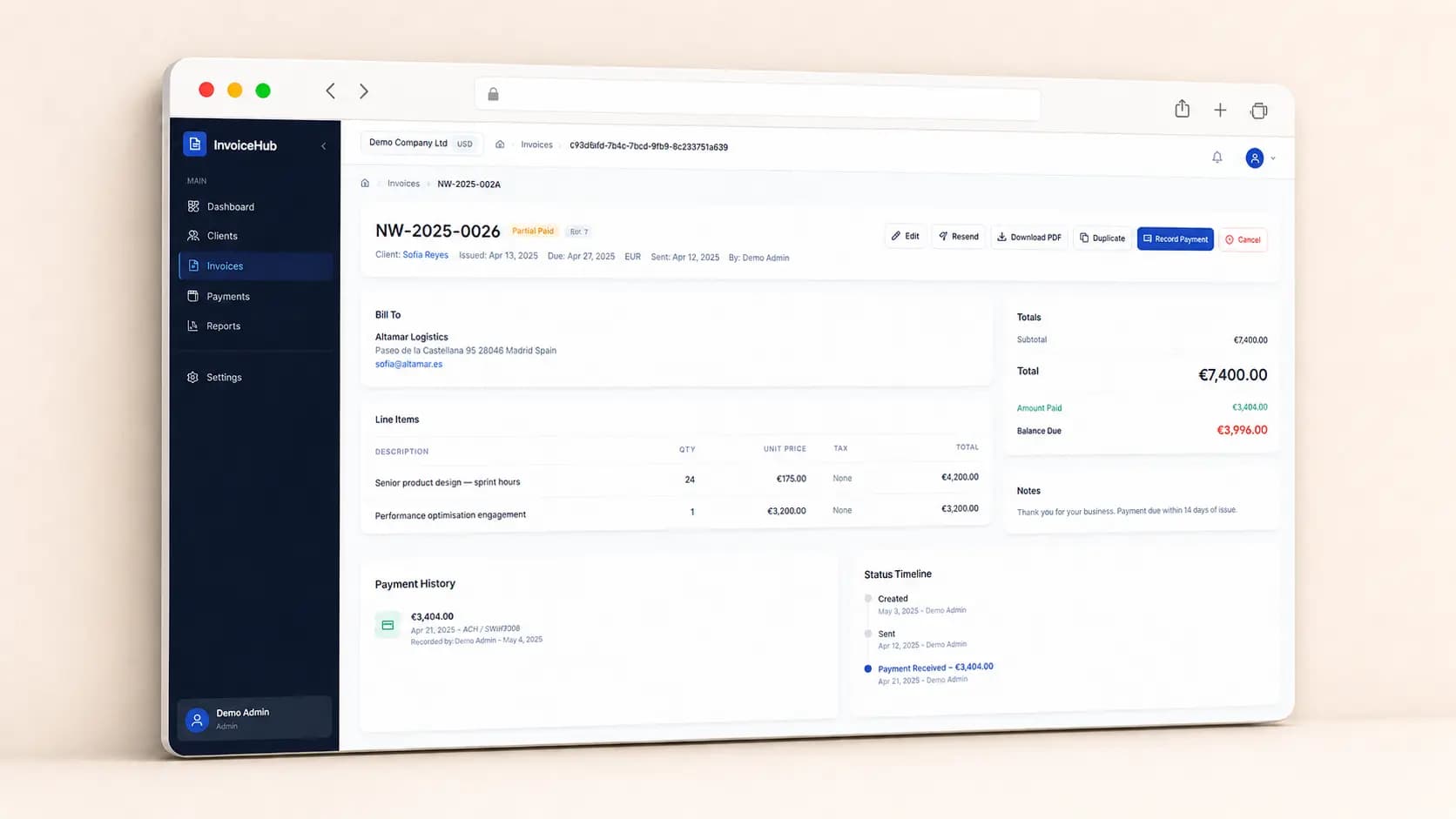
Case Study
InvoiceHub
LaravelNext.jsDockerPostgreSQLSaaSMulti-Tenant
InvoiceHub is a multi-tenant SaaS invoicing platform built for freelancers and small businesses. Users create branded invoices, accept payments through Stripe, send automated reminders, and track outstanding balances in real time. The architecture supports complete tenant isolation, custom domains per workspace, recurring invoice scheduling, and an audit log for every financial event. Built with Next.js, Prisma, and Stripe Connect.
Version 1.0 · Last updated May 5, 2026
💼 Welcome to InvoiceHub
InvoiceHub is a multi-tenant SaaS invoicing platform built for service-based businesses, agencies, and consultancies that bill clients across borders and currencies. Whether you're an admin sending out monthly retainers, a staff member recording a wire transfer, or a client downloading last quarter's invoice — InvoiceHub keeps everything in one place.The platform is split into three coordinated experiences: a Super Admin Portal for managing tenants, an Admin/Staff Portal for running the business, and a Client Portal where customers self-serve.What You Can Do
- Run a multi-tenant business — Each company gets its own isolated workspace, branding, currency, and team
- Bill in any currency — Invoice clients in their local currency while reporting in your base currency
- Create rich invoices — Multiple line items, per-line tax rates, fixed or percentage discounts, custom notes
- Edit sent invoices safely — Every change after "Sent" is captured as a numbered revision and the client is auto-emailed
- Record manual payments — Cash, check, or bank transfer; partial payments roll up automatically
- Manage clients end-to-end — Contacts, billing addresses, internal notes, and a full invoice & payment history per client
- Run financial reports — Revenue Summary, Aging, Client Ledger, and Tax Reports — all exportable to PDF or CSV
- Stay notified — In-app notification drawer for both staff and clients, with email automation for new invoices and overdue reminders
- Give clients a portal — Branded self-service access where clients view invoices, download PDFs, and raise disputes
- Use it anywhere — Desktop-first design with a responsive mobile experience (bottom tabs, FABs, bottom sheets)
🚪 Getting Started
Create Your Account
- Go to the InvoiceHub landing page and click Create an account
- Fill in company name, full name, email, and password
- Click Create Account — you'll see a "Check your email" screen
- Open the verification email and click the link
- You'll land in the onboarding flow
Onboarding (4 Steps)
InvoiceHub walks you through a quick setup before you start invoicing:- Company Details — Business address, phone, website, logo upload, and your base currency (used for reporting)
- Branding — Client portal display name, brand color, and footer text — clients see this when they log in
- Invoice Defaults — Invoice number prefix (e.g.
INV-), default payment terms (e.g. Net 30), default notes, and your tax rates (name + percentage) - Invite Your Team — Optionally invite a first teammate as Admin or Staff (you can skip and do this later)
Tip
You can revisit and change any of these later under Settings.📊 The Admin Dashboard
The Dashboard is your home base. It shows:- Financial summary cards — Total Outstanding, Collected This Month, Overdue Count, Sent This Month
- Recent Activity feed — Chronological log of invoice and payment events
- Overdue Invoices — Quick-jump list of clients with past-due balances
- Upcoming Due — Invoices due within the next 7 days
Tip
On mobile, the + Create Invoice button becomes a Floating Action Button so it's always one tap away.👥 Managing Clients
Clients are the people and companies you invoice. Every client can also be invited to the Client Portal.Add a Client
- Click Clients in the sidebar
- Click Add Client (opens a slide-in panel on desktop, full-screen page on mobile)
- Fill in full name, company name, unique email, phone, billing address, internal notes (staff-only), and the active/inactive status toggle
- Click Save
View a Client
Click any row in the Client List to open the Client Detail page. It has four tabs:- Overview — Outstanding balance, total invoiced, last payment date, quick actions
- Invoices — All invoices for this client, filterable by status
- Payments — Chronological list of every payment recorded
- Notes — Internal staff notes with timestamps
Tip
From the Overview tab, click Create Invoice for this Client to start a new invoice with the bill-to section pre-filled.Deactivate a Client
Open the Client Detail, click Deactivate, and confirm. Deactivation prevents new invoices but preserves all historical data — past invoices and payments stay intact.🧾 Creating an Invoice
This is the core workflow — from a blank form to a sent invoice in a few steps.Start a New Invoice
- Click + New Invoice from the dashboard, the Invoices list, or a Client Detail page
- The header is pre-filled: invoice number, issue date, due date (from default payment terms), and currency (defaults to base currency — change it to bill in any supported ISO 4217 currency)
- Pick a client from the searchable selector (or click + Add new client to create one inline)
- The Bill To section auto-fills from the client record — edit inline if needed for this invoice only
Add Line Items
Each line item has:- Description (free text)
- Quantity (decimals allowed — e.g. 2.5 hours)
- Unit price in the invoice's currency
- Tax rate (pick from your saved rates, or none)
- Line total (auto-calculated as
qty × price + tax)
Discounts & Totals
- Toggle the Discount section to apply either a fixed amount or a percentage
- The Totals block updates live — Subtotal, Discount, Tax breakdown, Total Due
Notes & Save
- Add client-facing notes (appears on the PDF) and internal notes (staff-only)
- Click Preview PDF to see exactly what the client will receive
- Click Save as Draft to store without sending, or Save & Send to commit and email the client immediately
Important
Once you click Save & Send, the invoice status becomes Sent. Any further edits create a revision — see the next section.✏️ Editing a Sent Invoice (Revisions)
InvoiceHub lets you edit invoices that have already been sent — but it tracks every change as a numbered revision.How Revisions Work
- Open the invoice from the Invoice List or Detail page
- Click Edit — a yellow warning banner appears at the top of the form
- Make your changes (line items, amounts, dates, notes, etc.)
- Fill in the required revision notes field — a brief description of what changed
- Click Save
- Increments the revision number (1 → 2 → 3…)
- Stores a snapshot of the invoice state before the change
- Automatically emails the client the updated PDF
- Logs the revision with your name, timestamp, and your notes
Important
You can only edit invoices in Sent or Partially Paid status. Draft invoices edit freely without revisions, and Paid or Cancelled invoices are locked.💰 Recording Payments
InvoiceHub handles manual payments — checks, cash, bank transfers. There's no payment processor; staff record what comes in.Record a Payment
- Open the Invoice Detail page (or the Client Detail → Overview tab)
- Click Record Payment — opens a modal on desktop, bottom sheet on mobile
- Enter amount received (defaults to outstanding balance — adjust for partial payments), payment date, and an optional reference note
- Click Save
- Full payment → Paid
- Partial payment → Partially Paid
- The outstanding balance recalculates live
View All Payments
Click Payments in the sidebar to see every payment ever recorded across all clients. Search by client name, invoice number, or reference. Filter by date range.Edit or Delete a Payment (Admin only)
Mistakes happen. Admins can:- Edit a payment — modify amount, date, or reference. A reason is required and the change is logged with before/after values
- Delete a payment — confirmation and a reason are required. Deletion reverses the allocation on the invoice (status reverts if needed)
Important
All payment edits and deletions are kept in a permanent audit trail. Staff (non-admin) users can record payments but cannot edit or delete them.📈 Reports
Open Reports from the sidebar (or the More menu on mobile). Four reports are available:Revenue Summary
Pick a date range and optionally a specific client. See total invoiced, total collected, total outstanding for the period — plus a month-by-month breakdown table.Aging Report
Pick an as-of date (defaults to today). InvoiceHub groups all outstanding invoices into age brackets:- 0–30 days
- 31–60 days
- 61–90 days
- 90+ days
Client Ledger
Pick a client and a date range. InvoiceHub shows a running ledger — every invoice and payment in chronological order with a running balance after each entry. Great for sending to a client who wants reconciliation.Tax Report
Pick a date range. InvoiceHub groups tax collected by tax rate, with the contributing invoices listed under each. Useful for VAT/GST filings.Export
Every report has Export to PDF and Export to CSV at the bottom.⚙️ Settings (Admin only)
Settings is split into six sections:- Company — Name, address, phone, website, logo, base currency
- Invoice Defaults — Number prefix, payment terms, default notes, tax rates (add / edit / delete)
- Portal Branding — Client portal display name, brand color, footer text
- Notifications — Auto-send on Save & Send, overdue reminder schedule, from-name, reply-to address
- Team — Invite, deactivate, and manage Admin/Staff roles
- My Account — Your own profile and password
Important
Settings is restricted to Admin users. Staff users won't see the Settings link in the sidebar.Inviting Team Members
- Settings → Team Members → Invite new team member
- Enter their email and pick a role (Staff or Admin)
- Click Send Invite — they get an email with a magic link
- They appear in the list as Pending until they accept
🌐 The Client Portal
Every tenant gets a branded Client Portal at/portal. Clients invited from the Client List receive a magic-link email to set a password on first access.What Clients Can Do
- Dashboard — Outstanding balance, summary stats (total / paid / overdue), recent invoices, last payment
- Invoices List — Searchable, filterable by status (All / Unpaid / Paid / Overdue)
- Invoice Detail — Read-only view with line items, totals, payment history, and Download PDF
- Raise a Dispute — Click the button on any invoice, fill in a reason and details, and submit. Staff are notified by email and in-app
- Profile — Update phone, billing address, notification preferences, and password
Important
Disputes are handled outside the app by staff (via email/phone). InvoiceHub logs the dispute and notifies staff but does not provide an in-app dispute resolution thread.Notification Preferences (Client Side)
Clients can toggle:- New invoice emails
- Payment due reminders
- Payment recorded confirmations
🛡️ Super Admin Portal
For platform operators (separate from any tenant). Access via/admin with a super admin account.What Super Admins Can Do
- Dashboard — Aggregate stats: total active tenants, invoices processed this month, recent signups, system alerts
- Tenant List — All tenant accounts, filterable by status (active / suspended / trial), searchable by company
- Tenant Detail — Company details, owner info, usage metrics, subscription status
- Impersonate — Enter any tenant's Admin Portal as their admin (with a clear visual indicator that you're in impersonation mode)
- Suspend a Tenant — Confirmation + reason required; immediately revokes access for all users in that tenant
- System Settings — Global email templates, default currency for new tenants, password policy, session timeout
Important
The/admin route is strictly restricted to users with role super_admin. Anyone else gets a 403 Forbidden.🔔 Notifications
Both portals have a notification bell in the top bar. Clicking it opens the Notification Drawer (slide-in on desktop, bottom sheet on mobile).Admin Notifications
- Client viewed an invoice
- An invoice became overdue
- A client raised a dispute
- A team member accepted their invitation
Client Notifications
- A new invoice was issued
- A payment was recorded on your account
- An invoice is now overdue
- A dispute status was updated
📱 Using InvoiceHub on Mobile
InvoiceHub is desktop-first, but the mobile experience is fully responsive. Here's how it differs:- Top App Bar — Hamburger menu (left), screen title (center), notification bell (right)
- Bottom Tab Bar — Dashboard, Clients, Invoices, Payments, More
- More Menu — Reports, Settings, Team, Log Out
- Lists — Tables become card lists; key info (name, amount) is large, secondary info smaller below
- Filters — Dropdowns become horizontal scrolling chips
- Forms — Complex forms push to full-screen pages with fixed Save/Cancel at the bottom
- Quick actions — Bottom sheets for Record Payment, Quick Status Change
- Floating Action Button —
+ New Invoiceis always one tap from the dashboard
Tip
On mobile invoice tables, swipe left on a row to access quick actions like Download PDF or Record Payment.📋 Quick Reference
Sidebar (Admin/Staff Portal)
- Dashboard → Financial summary, recent activity
- Clients → Contact list, client details
- Invoices → All invoices, create new
- Payments → All recorded payments
- Reports → Revenue, Aging, Ledger, Tax
- Settings (Admin only) → Company, Invoice Defaults, Branding, Notifications, Team, My Account
Invoice Statuses
- Draft → Not yet sent; freely editable
- Sent → Emailed to client; edits create revisions
- Partially Paid → Some payment recorded but not full
- Paid → Fully paid; locked
- Overdue → Past due date and not fully paid
- Cancelled → Voided with a reason; locked
User Roles
- Super Admin — Platform-wide access (no tenant)
- Admin — Full access within a tenant including Settings
- Staff — Daily operations only; no access to Settings, no payment edit/delete
Tips
- Use the date range selector on the Dashboard to scope summary cards
- Editing a sent invoice always creates a revision — fill in clear revision notes
- Mark payments Paid promptly — partial payment status updates the invoice automatically
- Keep your tax rates list current — they appear in the line item dropdowns
- Invite clients to the portal so they can self-serve PDFs and dispute requests
Thank you for using InvoiceHub
Multi-currency invoicing made simple — for your team and your clients.
Version 1.0 · Last updated May 5, 2026